Why people pick it
Pricing Table (plexblocks/pricing-table)
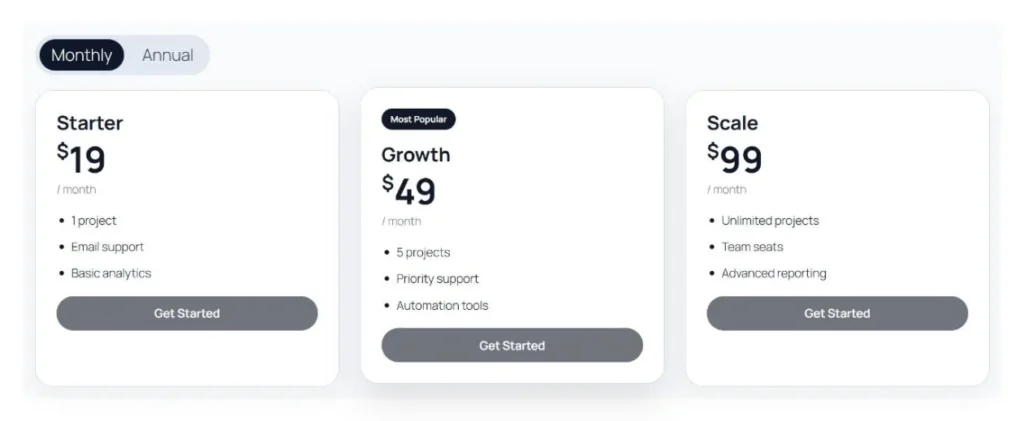
The main container block with multi-column layout controls, responsive grid gap, table alignment, max-width, and the optional billing period switcher.
Pricing Card (plexblocks/pricing-card)
Individual plan cards nested inside the pricing table. Control plan names, monthly and annual prices, currency symbols, featured badges, button…
Interactive Billing Switcher
Give visitors the ability to toggle smoothly between monthly and annual plans. Instant client-side switching with zero page reload.
Responsive Multi-Column Grid
Choose 1, 2, 3, or 4 columns for desktop screens with automatic, graceful responsive collapsing on mobile devices.
How to use it
Install and activate
In your dashboard open Plugins, then Add New, and search for PlexBlocks Pricing. Or download the zip from WordPress.org.
Add the block
In any page, post or pattern type /pricing and press Enter.
Set it up
Choose the options in the block sidebar. The editor shows the result as you change it.
Publish
Update the page and check it on the front end, on a phone as well.
Everything in the box
- Pricing Table (plexblocks/pricing-table): The main container block with multi-column layout controls, responsive grid gap, table…
- Pricing Card (plexblocks/pricing-card): Individual plan cards nested inside the pricing table.
- Interactive Billing Switcher: Give visitors the ability to toggle smoothly between monthly and annual plans.
- Responsive Multi-Column Grid: Choose 1, 2, 3, or 4 columns for desktop screens with automatic, graceful responsive…
- Featured Plan Highlighting: Make your highest-value plan stand out with customizable badge text (e.g., “Most…
- Configurable Call to Action (CTA) Buttons: Customize button label, target URL, background color, text color, hover effects, and pill…
- Rich Feature Lists: Enter features line by line. Supports bold text () for highlights and strikethrough ()…
- Ready-to-Use Design Presets: Instantly apply stylish design presets such as Editorial, Split, Spotlight, Dark, Soft…
- Deep Per-Card & Table Styling: Fine-tune colors (background, text, plan title, price, period label, border, badge, and…
- Zero Bloat & Peak Performance: Built with pure vanilla JavaScript and native CSS variables.
- Block Theme & Full Site Editing (FSE) Ready: Fully compatible with classic themes, modern block themes, and the WordPress Site Editor.
What is next
Missing something? Tell us what you would like this block to do. Write to [email protected] or use the support forum on WordPress.org.
Recent changes
1.0.0
- Initial release: Responsive Gutenberg pricing table block, pricing card block, monthly/annual billing switcher, featured plan…
Questions people ask
Can I switch between monthly and annual pricing?
Yes. The Pricing Table block includes an interactive billing toggle that allows your site visitors to switch between monthly and annual prices instantly. You can customize the toggle labels (for example, “Monthly” and “Annual” or “Pay Monthly” and “Pay Yearly”) or disable the toggle switcher if you only offer one fixed billing frequency.
Can I highlight one plan as “Featured” or “Most Popular”?
Yes. In any Pricing Card block settings, enable the “Featured plan” option. You can set a custom badge text (such as “Most Popular”, “Recommended”, or “Best Value”), customize the badge colors, and assign distinct shadow and border styles to make that card stand out from the rest.
How do I add, remove, or reorder pricing cards?
The Pricing Table block acts as a parent block container for Pricing Card blocks. To add a new card, click the “+” inserter inside the table grid. To reorder cards, use the block mover arrows or the Gutenberg List View. To remove a card, select the card and click Options (three dots) > Delete.
Can I change the currency symbol?
Yes. Each pricing card has an independent currency symbol setting. You can use any symbol or code, such as $, €, £, ₹, ¥, CAD, or USD.
How do I format the features list?
In the card’s “Features” field, type each feature on its own line. You can format items using basic HTML tags: use Feature Name for bold text or Unavailable Feature to display a feature with strikethrough styling for tiers where that feature is excluded.
What happens if I don’t enter a button URL?
If you provide a button label but leave the button URL empty, the button is displayed as an inactive/disabled indicator. Once you enter a valid URL, it automatically turns into an active clickable link.
How many columns can I display?
You can select 1, 2, 3, or 4 columns for desktop displays. The grid automatically adjusts for tablets and mobile devices to ensure readability and seamless responsive behavior on all screen sizes.
Can I customize the colors and fonts?
Yes. The block inspector provides comprehensive design controls. You can customize background colors, text colors, borders, border radius, shadows, padding, and font sizes and weights for plan names, prices, feature lists, and buttons.
Does this plugin slow down my site?
Not at all. PlexBlocks – Pricing for Block Editor is built with clean, modern development practices: lightweight CSS variables, dynamic server-side rendering, and pure vanilla JavaScript with zero external dependencies. There is no jQuery, no large frontend libraries, and minimal asset overhead.
Can I add multiple pricing tables on the same page?
Yes. You can add as many Pricing Table blocks as you need on a single page or across multiple pages. Each table operates completely independently.